When someone realises their email has been hacked, the first thing they do is change the password. That is the right instinct, but on its own it often does not lock the criminal out. By the time anyone notices, the attacker may have set up several quieter ways back in, and a new password does not touch most of them.
Why a new password is not enough
Microsoft’s own guidance for a compromised Microsoft 365 account lists several steps beyond the reset, because each one closes a different door.
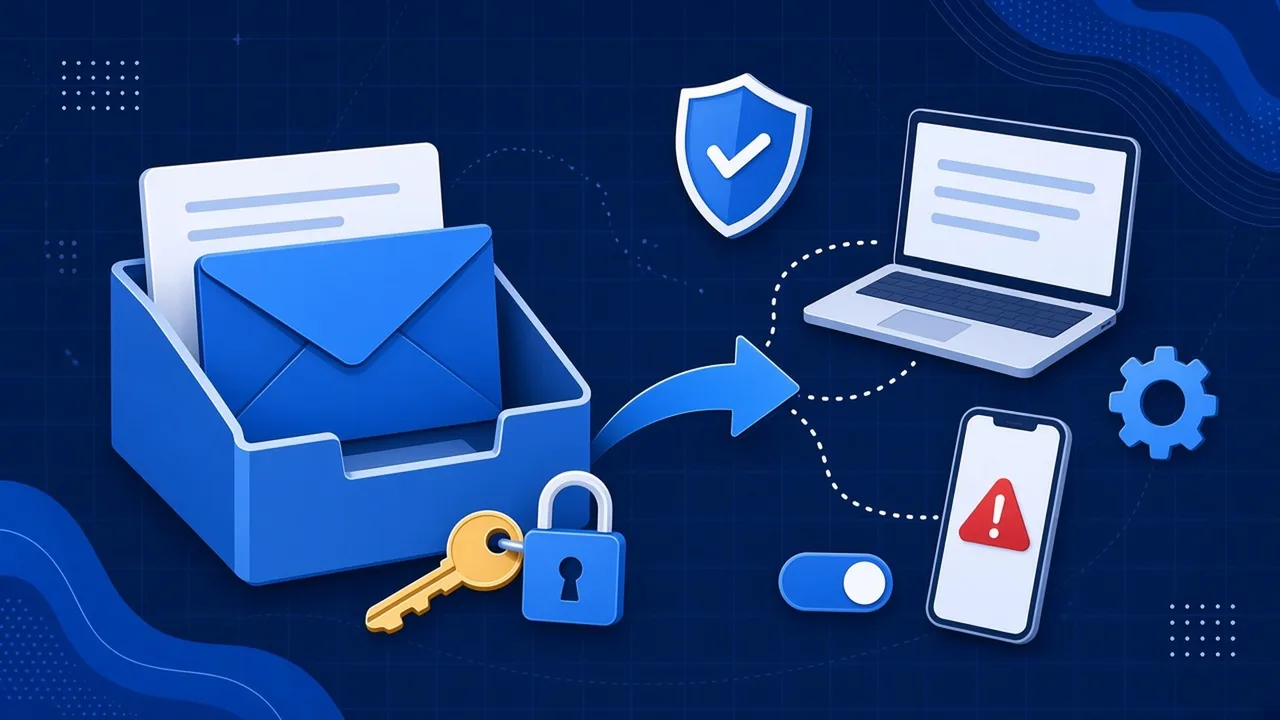
Forwarding and inbox rules
This is the most common trick. The attacker sets up a rule that quietly sends a copy of incoming email to an outside address, or moves certain messages into a folder nobody looks at, such as Junk or RSS Subscriptions. They can keep reading your email long after the password has changed. The NCSC specifically warns that criminals set up forwarding rules so they can receive copies of your email, which can let them reset passwords for your other accounts.
Sessions that stay signed in
Phones, laptops and browsers that were already signed in can stay connected for a while. Unless every session is signed out, an attacker who was logged in may still be logged in.
Extra sign-in methods
If multi-factor authentication (MFA) is turned on, a smart attacker may add their own phone or authenticator app as an extra method. Microsoft advises reviewing the MFA devices registered to the account and removing anything you do not recognise.
Apps with permission
Some attacks trick the user into granting a malicious app access to their mailbox or files. That permission survives a password reset until someone removes it.
App passwords
Microsoft notes that app passwords are not automatically revoked when you reset the main password.
What to do if an account is hacked
If you are on Microsoft 365, this is the order we would work through:
- Block or disable the account while you investigate, if you can. If not, reset the password straight away to something strong and unique.
- Sign out every session. In Microsoft 365 your administrator can revoke all sign-ins for that user.
- Check the MFA methods and remove anything unfamiliar.
- Review inbox rules and forwarding, including any rule that forwards, redirects or moves mail.
- Remove unknown apps and delete old app passwords.
- Look at the sign-in logs for unfamiliar locations or times, and check the Sent Items folder.
- Warn your contacts that any recent unusual emails from that address may be fake.
- Check bank and payment activity, especially if invoices go through that mailbox.
Don’t send the new password by email, because the attacker may still be reading it. If you have lost money, call your bank straight away and report it to Report Fraud at reportfraud.police.uk or on 0300 123 2040.
Stop it happening in the first place
The best fix is not needing one. A few settings make a big difference:
- MFA on every account, especially anyone with admin rights.
- Block automatic forwarding to outside addresses unless there is a genuine business need.
- Alerts for new forwarding rules and unusual sign-ins, so someone hears about it quickly.
- Restrict who can approve apps, so staff cannot grant mailbox access to anything that asks.
- Staff who report quickly, so an attacker has less time to dig in.
Our post on common Microsoft 365 mistakes covers more of them, and strong passwords and MFA explains the basics.
Not sure how your Microsoft 365 is set up?
Our free Microsoft 365 health check looks at forwarding, MFA, admin access and the other settings attackers rely on, and gives you a plain English list of what to fix. Start it from the live chat on our website or call us on 01482 586 550.